Accessibility Tools

FREE

Join the BigFreq community and get BigFuzz, our 4-band multiband distortion

Free downloadFree plugin · 4-band multiband distortion

BigFuzz

Four bands. Four kinds of dirt. One plugin.

BigFuzz splits your signal into four bands and drives each one on its own. Saturate the low end without mud, crunch the mids, fizz the top, then decide exactly how it all sums back together. Fast on the surface, deep when you open Advanced Settings.

VST3 / AUWindows / macOS
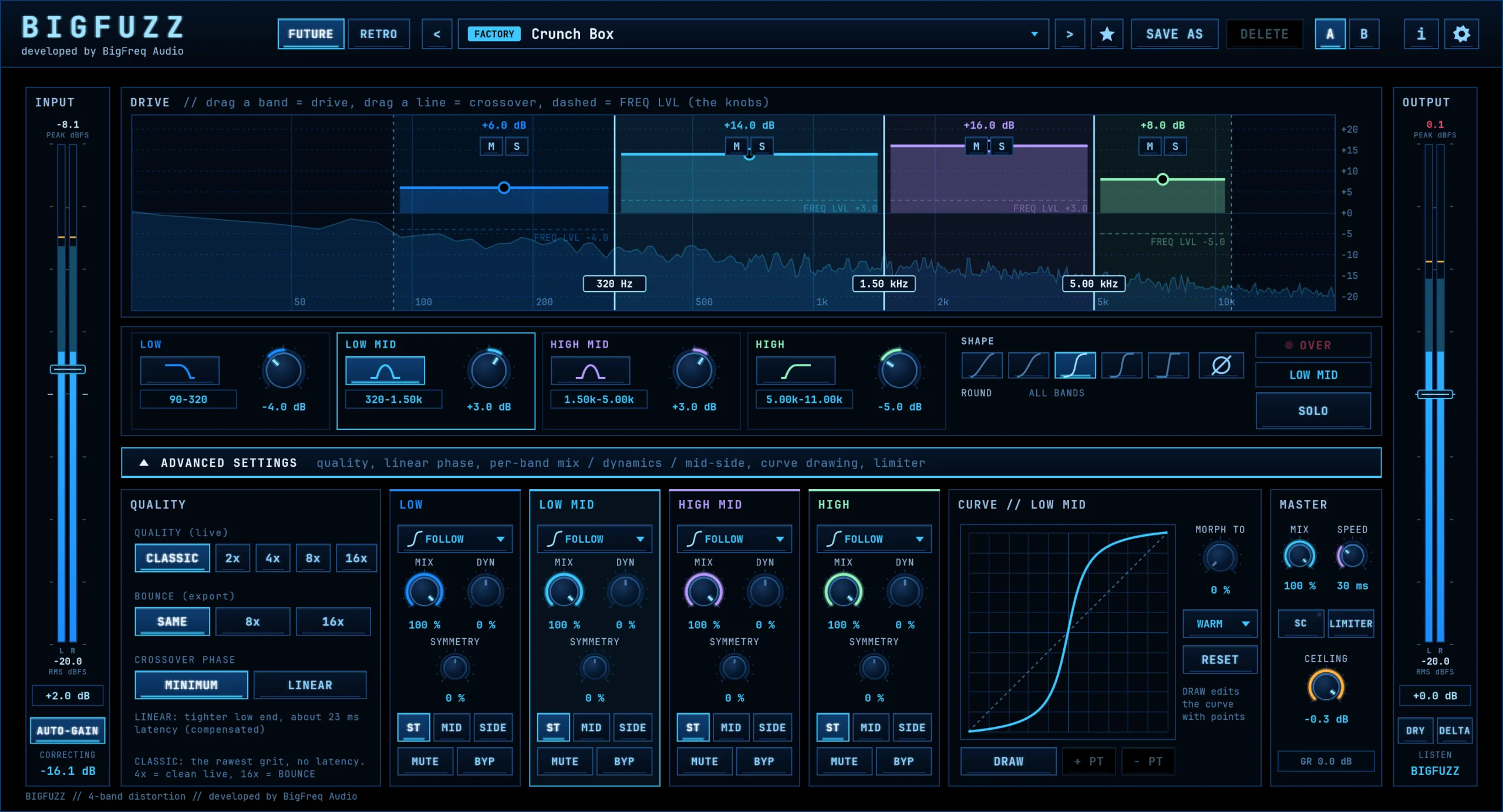
BigFuzz with Advanced Settings open: engine switch, input meter, drive display, band strip, quality, per-band strips, curve editor, master section and output meter
Inside the plugin

Push each band as hard as it needs. Nothing more.

Distort the bass without losing the bottom. BigFuzz drives each band on its own, so the sub stays tight while the top screams.

BigFuzz: future or retro
Two engines

FUTURE or RETRO

A switch in the header picks the engine. Each one is a complete sound with its own band filters, curves and presets, and your settings stay when you switch.

LOUD OUTPUT WARNING

BigFuzz in RETRO mode can get very loud: with AUTO-GAIN off, up to about 39 dB louder than its input in our tests, and other settings can go higher. Sudden level jumps can damage your hearing and your speakers, so turn your monitors down before you try a new sound.

FUTURE and RETRO are not level-matched to each other. FUTURE played up to about 15 dB louder than its input in the same tests.

AUTO-GAIN brings the level back over about half a second, by up to 24 dB, so a sudden hit can still jump first. Turn on the LIMITER in ADVANCED SETTINGS as a safety net.

The plugin shows this warning when its window is on RETRO, until you tick Don't show this again.

  1. FUTURE The default: modern and clean-splitting. 34 presets in 6 banks (START, DRUMS, BASS, GUITAR, SYNTH, MIX). Each preset is built around one idea, and presets can use per-band shape, mix, dynamics, symmetry and mid / side.
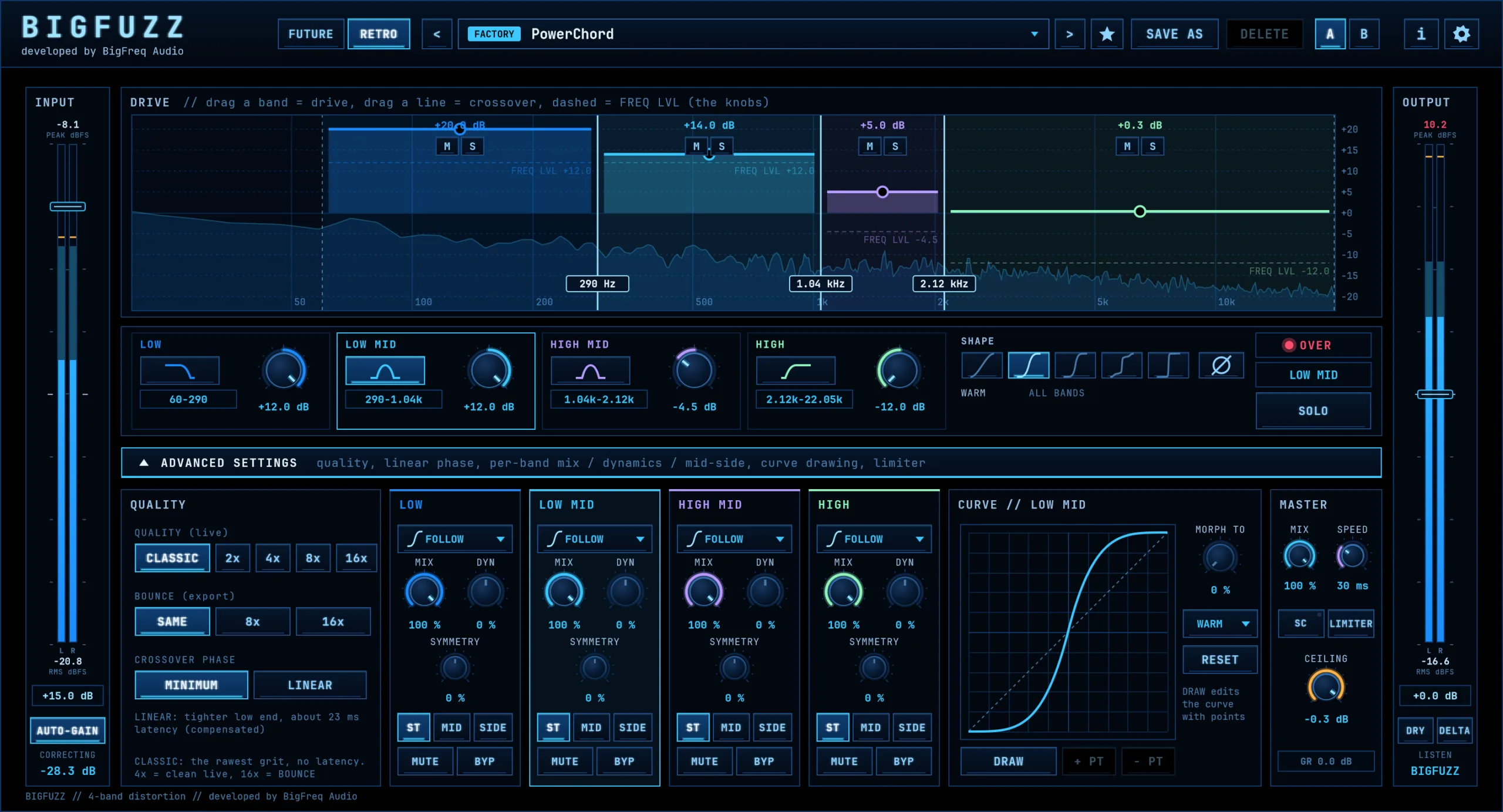
  2. RETRO Raw and old-school. 41 presets in 4 banks (DEFAULT, GUITAR, BASS, DRUMS). In CLASSIC quality with CROSSOVER PHASE on MINIMUM, dragging a crossover gives a gritty, glitchy noise on purpose.
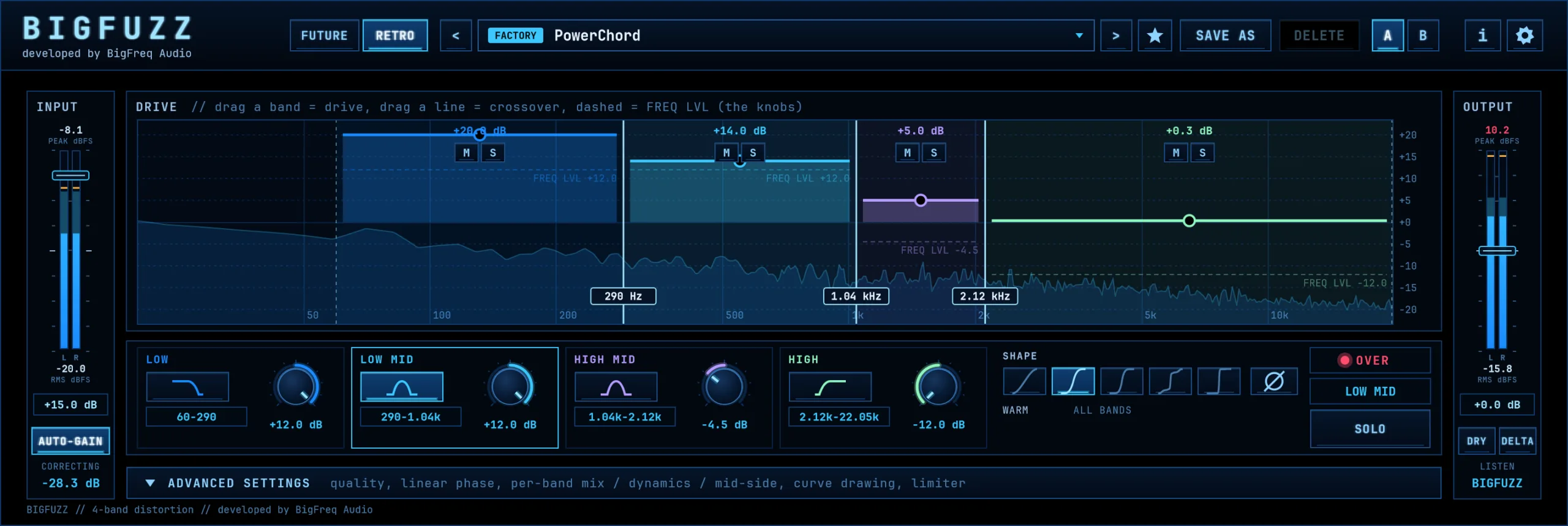
BigFuzz RETRO engine with Advanced Settings closed
BigFuzz: drive you can see, with numbered markers
Drive

Drive you can see

The Drive display is where you play BigFuzz. Everything is direct: drag a band up to push it harder, drag a divider to move a crossover, and watch the live spectrum underneath to see where the energy sits.

  1. Drive per band Drag the band line up or down. The dashed line shows that band's output level (FREQ LVL), so drive and level are visible together.
  2. Crossovers Drag a solid line to move the split point, with the frequency shown in a readout. The dashed vertical lines are the outer edges: sound outside them is rolled off.
  3. M and S M mutes the band and S solos it, right on the display.
  4. Live spectrum The input analyser behind the bands, so you place crossovers by eye.
BigFuzz: the numbers behind the display, with numbered markers
Band strip

The numbers behind the display

The strip under the display shows each band's range, and sets its level after the distortion.

  1. Band icon Select the band. SOLO, the curve editor and the highlighted Advanced strip work on the selected band.
  2. Band range The band's frequency range. Change it by dragging the lines in the Drive display.
  3. Level knob The band's volume after the distortion, -12 to +12 dB. Drive hard, then sit the band back in the mix.
  4. Shape Five distortion characters from soft to hard, for all bands unless a band runs its own shape.
  5. Polarity Flips the whole output, with a 10 ms glide so it never clicks. Saved with the preset.
  6. Over and selected band OVER lights when a band is driven into hard clipping. Below it, the band you are editing.
  7. Solo Hear the selected band on its own.
BigFuzz: every band is its own distortion channel, with numbered markers
Per band

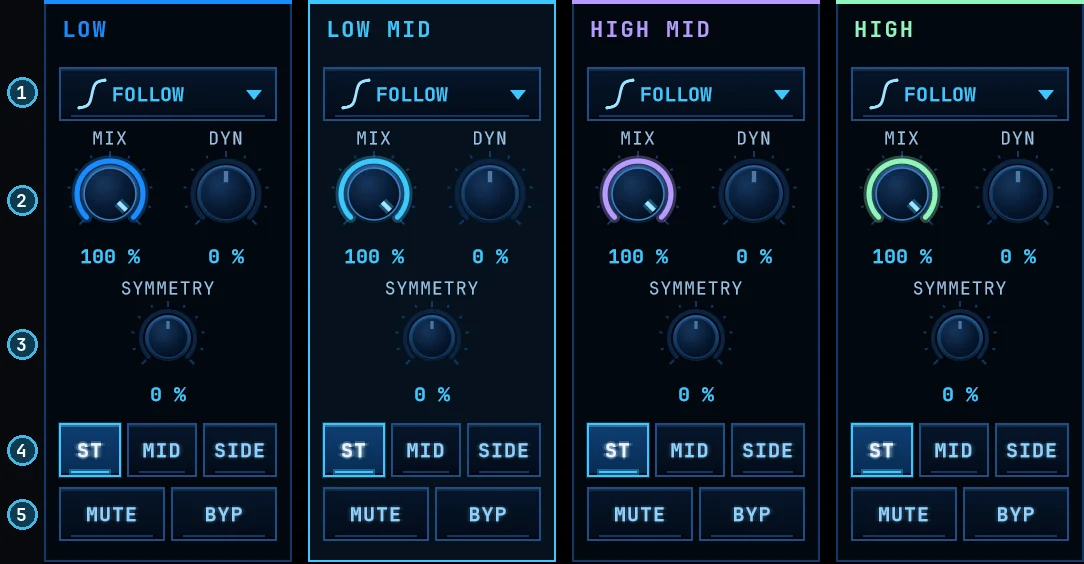
Every band is its own distortion channel

Open Advanced Settings and each band gets its own shape, blend, dynamics and stereo mode.

  1. Shape per band Follow the global shape, or give a band its own.
  2. Mix and dynamics Parallel blend per band, plus DYN for drive that reacts to the input level. Push transients harder, keep tails controlled.
  3. Symmetry Skew the clipping to one side for asymmetric, even-harmonic grit.
  4. Stereo, mid or side Distort the side content of the highs for width while the low end stays mono and solid.
  5. Mute and bypass Drop a band out entirely, or pass it through clean.
BigFuzz: draw your own curves, with numbered markers
Curves

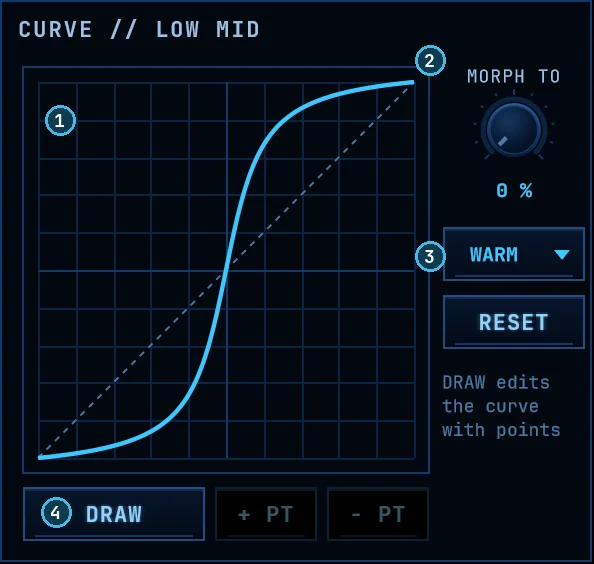
Draw your own curves

Go past preset distortion types. The curve editor shows the transfer curve of the selected band and lets you redraw it.

  1. Curve editor The exact shape of the clipping, against a dashed linear reference.
  2. Morph To Blend from your current curve toward a target shape, fully automatable. 0 % is off.
  3. Target and reset Pick the target (for example WARM), or reset the curve.
  4. Draw, + PT, - PT Edit the curve with points: add, remove and drag them.
BigFuzz: one quality for playing, one for the bounce, with numbered markers
Quality

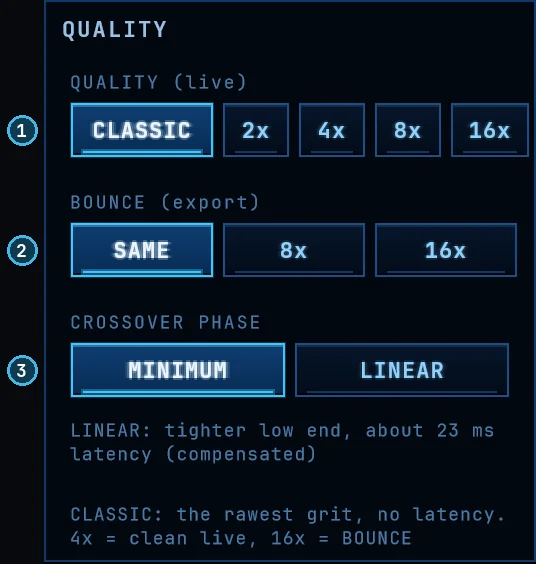
One quality for playing, one for the bounce

Separate settings for playing and for rendering, so you never trade CPU for quality at the wrong moment.

  1. Live quality CLASSIC for the rawest grit with zero latency, or 2x to 16x oversampling. 4x is the clean choice for live playback.
  2. Bounce quality Choose separately what BigFuzz uses on export: same as live, 8x or 16x. Latency follows the higher of the live and bounce settings.
  3. Crossover phase MINIMUM for zero latency, or LINEAR for a tighter low end at about 23 ms at 48 kHz, compensated by your DAW.
BigFuzz: honest gain staging, with numbered markers
Gain staging

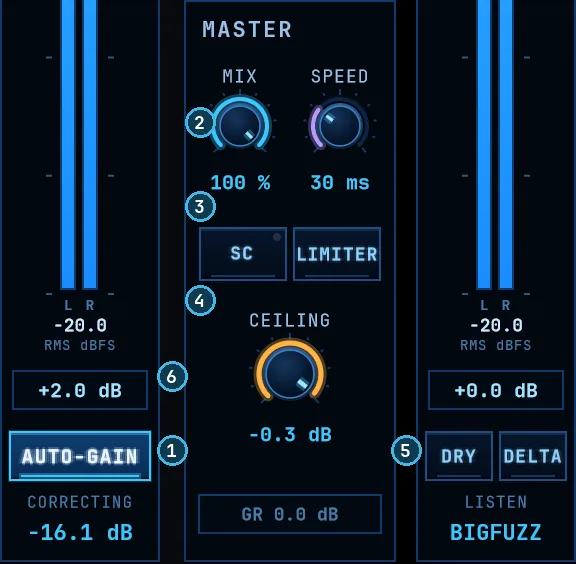
Honest gain staging

Judge the sound, not the volume jump.

  1. Auto-Gain On by default. It brings the level back towards the input level, by up to 24 dB, and shows how much it is correcting, so A/B comparisons stay honest.
  2. Master mix and speed Global dry/wet for parallel distortion. SPEED sets how fast the per-band DYN followers release, from 5 to 500 ms.
  3. SC DYN follows the side-chain input instead of each band's own level. Route a kick there and that band stays clean on the hit, dirty in between.
  4. Limiter and ceiling Off by default, and a factory preset turns it off. Turn it on in Advanced Settings: it catches peaks at the ceiling, with gain reduction shown underneath.
  5. Listen: dry or delta Compare against the dry signal at the same loudness, or hear what BigFuzz adds.
  6. Input and output Input drives all four bands at once. Output sets the level after Auto-Gain, before master mix and the limiter.
BigFuzz: presets, a/b and help on every control, with numbered markers
Workflow

Presets, A/B and help on every control

Everything you need to work fast sits in the top bar.

  1. Presets Browse factory and user presets.
  2. Favourites Star the ones you use.
  3. Save As and Delete Manage your own library.
  4. A / B Two settings slots for instant comparison.
  5. Info and settings Including tooltips on every control, which you can switch off.
  6. FUTURE and RETRO Switch between the two engines.
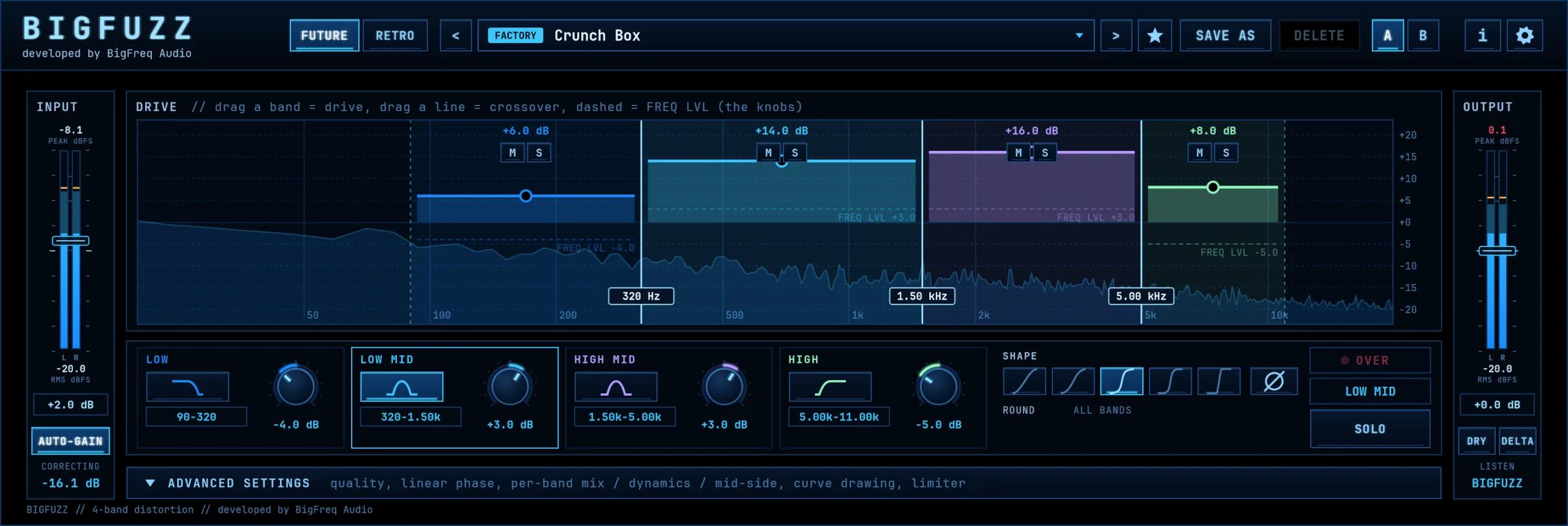
BigFuzz compact view with Advanced Settings closed
Prefer a smaller footprint? Close Advanced Settings and BigFuzz collapses to the essentials.
At a glance

Specs

Plugin type
Multiband distortion / saturation
Engines
FUTURE and RETRO, each with its own band filters, curves and presets
Bands
4, adjustable crossovers
Distortion shapes
5 global shapes, per-band shapes, drawable curves with morph
Per band
Drive, level, mix, dynamics with side-chain key, symmetry, stereo/mid/side, solo, mute, bypass
Oversampling
Classic, 2x, 4x, 8x, 16x (live); same, 8x, 16x (bounce)
Crossovers
Minimum phase (no added latency) or linear phase (about 23 ms at 48 kHz, compensated)
Output
Auto-Gain, master mix, limiter with ceiling, output trim, polarity
Monitoring
Dry / delta listen, peak and RMS meters, live spectrum
Workflow
75 factory presets (34 FUTURE, 41 RETRO), user presets, favourites, A/B, tooltips
Formats
VST3 (Windows and macOS), AU (macOS)
Platforms
Windows 10 and 11 (64-bit), macOS 11 or later (Apple Silicon and Intel)
Standalone
No, it runs inside your DAW
Activation
Free, sign-in with a BigFreq account on each computer, up to 3. Internet needed.
Version
1.0.0
Price
Free (EUR 0 checkout), free community included
01 / Download

Get BigFuzz free

BigFuzz is free. Claim it at the checkout for EUR 0, and the download link for Windows and macOS comes by email with your licence. You also join the free BigFreq community.

Windows

VST3
  • Windows 10 and 11, 64-bit
  • Any VST3 host
Get it free

macOS

VST3 · AU
  • macOS 11 or later, Apple Silicon and Intel
  • Any VST3 or Audio Units host, Logic Pro included
Get it free

Before You Install

Our installers are not signed yet, so your computer will warn you the first time. This is expected for a BigFuzz download from bigfreq.com.

Windows

  1. Right-click the zip, choose Extract All, then double-click Setup.exe.
  2. If you see "Windows protected your PC", click More info, then Run anyway.
  3. Click Yes if asked, then follow the installer.

Mac

  1. Double-click the zip, then double-click the .pkg.
  2. When macOS blocks it, click Done.
  3. Open System Settings > Privacy & Security, scroll down and click Open Anyway. Enter your password if asked.
  4. Follow the installer.

On macOS 11 to 14, right-click the .pkg, choose Open, then Open again.

EUR 0, nothing to pay. BigFuzz runs inside your DAW; there is no standalone app. Updates are posted in the community and listed in the release notes below.

02 / Release history

Release notes

What changed in each version: new features, fixes and known issues.

1.0.0First public release.Current
10 November 2026
  • NewFour-band distortion: each band has its own drive, level, mix, dynamics, symmetry and stereo mode, with drawable curves and morphing.
  • NewTwo complete engines, FUTURE and RETRO, each with its own band filters, curves and presets. FUTURE has 34 presets, RETRO has 41.
  • NewIn RETRO's CLASSIC quality with minimum phase, dragging a crossover makes a gritty, glitchy noise on purpose.

  • NewQuality from CLASSIC to 16x, with a separate setting for bounces.
  • NewAUTO-GAIN, DRY and DELTA listening, a limiter, a side-chain key for the dynamics, and A / B.
  • NewVST3 for Windows and macOS, and AU for macOS. Free, with a sign-in on each computer.
  • Good to knowBigFuzz can get very loud, especially in RETRO. Turn your monitors down before you try a new sound. The plugin shows this warning when its window is on RETRO, until you tick "Don't show this again".
03 / Installation and help

Install and help

BigFuzz runs as a VST3 or AU effect inside your DAW.

How loud can BigFuzz get?
LOUD OUTPUT WARNING

BigFuzz in RETRO mode can get very loud: with AUTO-GAIN off, up to about 39 dB louder than its input in our tests, and other settings can go higher. Sudden level jumps can damage your hearing and your speakers, so turn your monitors down before you try a new sound.

FUTURE and RETRO are not level-matched to each other. FUTURE played up to about 15 dB louder than its input in the same tests.

AUTO-GAIN brings the level back over about half a second, by up to 24 dB, so a sudden hit can still jump first. Turn on the LIMITER in ADVANCED SETTINGS as a safety net.

The plugin shows this warning when its window is on RETRO, until you tick Don't show this again.

Is BigFuzz really free?

Yes. Claim it at the checkout for EUR 0. The download link for Windows and macOS comes by email, and you join the free BigFreq community.

Does BigFuzz need a sign-in?

BigFuzz is free, but needs a sign-in on each computer. Until then your audio passes through dry. It checks your licence online: after 30 days without a check it goes back to dry until you connect and sign in again.

Which DAWs does it work in?

Any host that loads VST3 (Windows and macOS) or AU (macOS), such as Ableton Live, FL Studio, Cubase, Bitwig, Logic Pro and Reaper.

How do I install it on Windows?

Close your DAW, unzip the download and run the Setup installer. Windows SmartScreen may warn you once because the installer is not signed yet: click More info, then Run anyway. Restart the DAW, rescan plugins if needed and find BigFuzz among your VST3 effects.

C:\Program Files\Common Files\VST3\BigFreq\

How do I install it on macOS?

Close your DAW, unzip the download and open the .pkg installer. It is not notarized yet, so macOS may block it the first time. On macOS 15 or newer: click Done, open System Settings > Privacy & Security and click Open Anyway. On macOS 11 to 14: right-click the .pkg, choose Open, then Open again. Restart the DAW, rescan plugins if needed and find BigFuzz among your VST3 or Audio Units effects.

/Library/Audio/Plug-Ins/VST3/
/Library/Audio/Plug-Ins/Components/

Quickstart
  1. Insert BigFuzz on a track and pick a preset, or start from the default.
  2. Drag the dividers on the Drive display to set the three crossovers.
  3. Drag a band up to drive it. The knobs in the band strip set each band's level.
  4. Pick a shape. Leave Auto-Gain on so you judge tone, not loudness.
  5. Use Dry and Delta to hear what changed.
  6. Open Advanced Settings for quality, linear phase, per-band mix, dynamics, mid/side, curve drawing and the limiter.
Does it add latency?

Not by default. Minimum-phase crossovers and Classic mode add no latency, as long as Bounce stays on Same. Linear phase adds about 23 ms at 48 kHz, which your DAW compensates automatically.

How heavy is it on CPU?

Classic and 2x are light. Use 4x for clean live playback, and set Bounce to 16x so the export gets full quality without loading your session while you work.

How do I report a problem?

Use the feedback form below. Include your OS, DAW, BigFuzz version and the steps that make it happen.

Reports are stored privately and read only by the BigFreq team. Your email is optional and used only to reply about this report.

Get BigFuzz free

Claim BigFuzz for EUR 0 and get the download for Windows and macOS by email.